
Clocking in or out for an event
You can clock in and out from the EMCE mobile app or from EMCE on Apple Watch.
1. Mobile app clock in/out
Section titled “1. Mobile app clock in/out”- Find the event on the Dashboard Upcoming Events widget or the Schedule page.
- Tap the event.
- In the Attendance section, tap Clock In or Clock Out.
After you clock in, Clock Out remains disabled for one minute to prevent an accidental immediate clock-out. It becomes available automatically after the cooldown.
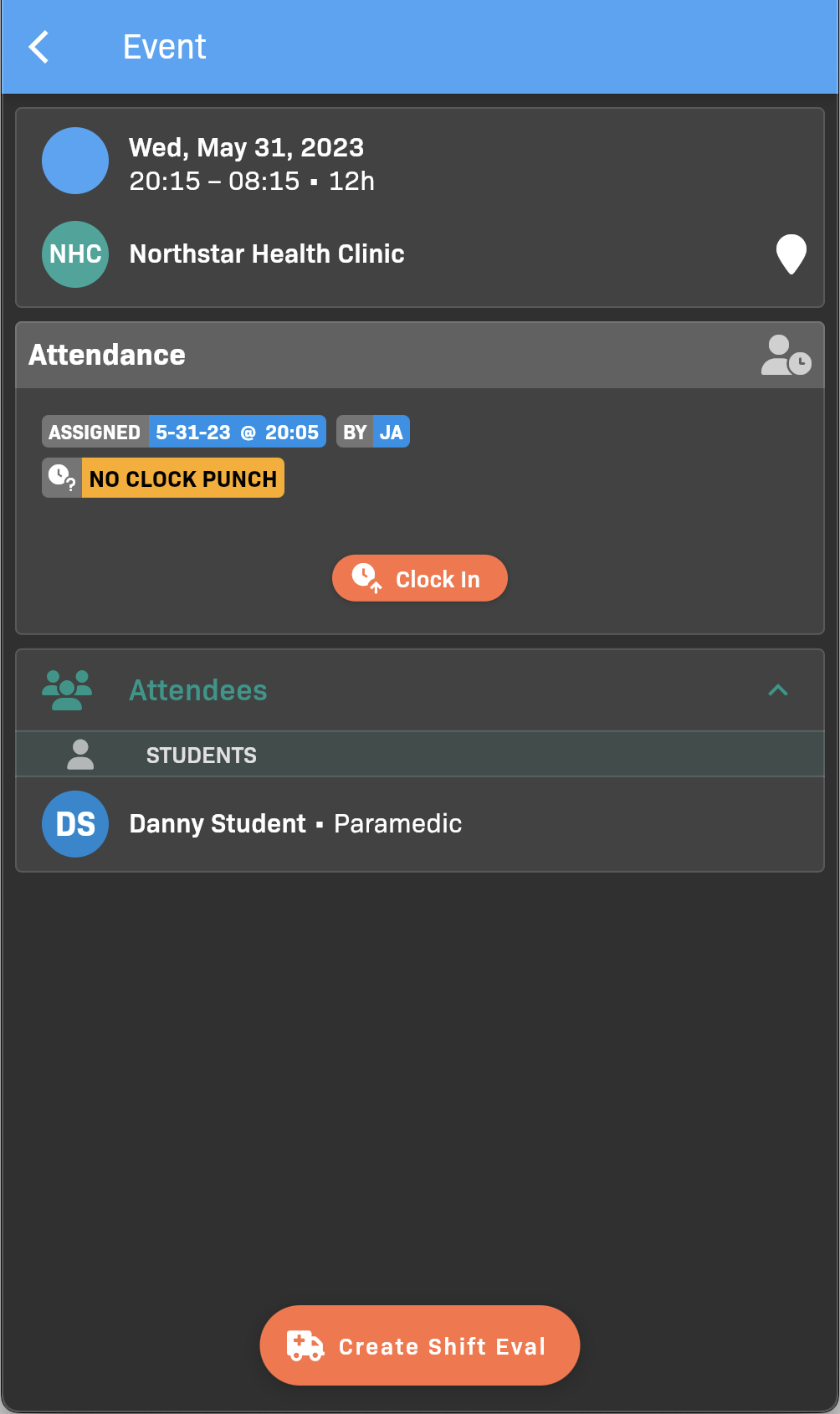
Event details
2. Apple Watch clock in/out
Section titled “2. Apple Watch clock in/out”- Open EMCE on your Apple Watch and go to Schedule.
- Select your event.
- Tap Clock In or Clock Out.
After you clock in, wait one minute for Clock Out to become available.
For setup and sign-in, see Using EMCE on Apple Watch.