
Editing an event
Find the event
Section titled “Find the event”-
Go to the Schedule page. If you’re using a mobile device, you may need to access this page by first tapping (menu).
-
On the calendar, tap the date the event takes place.
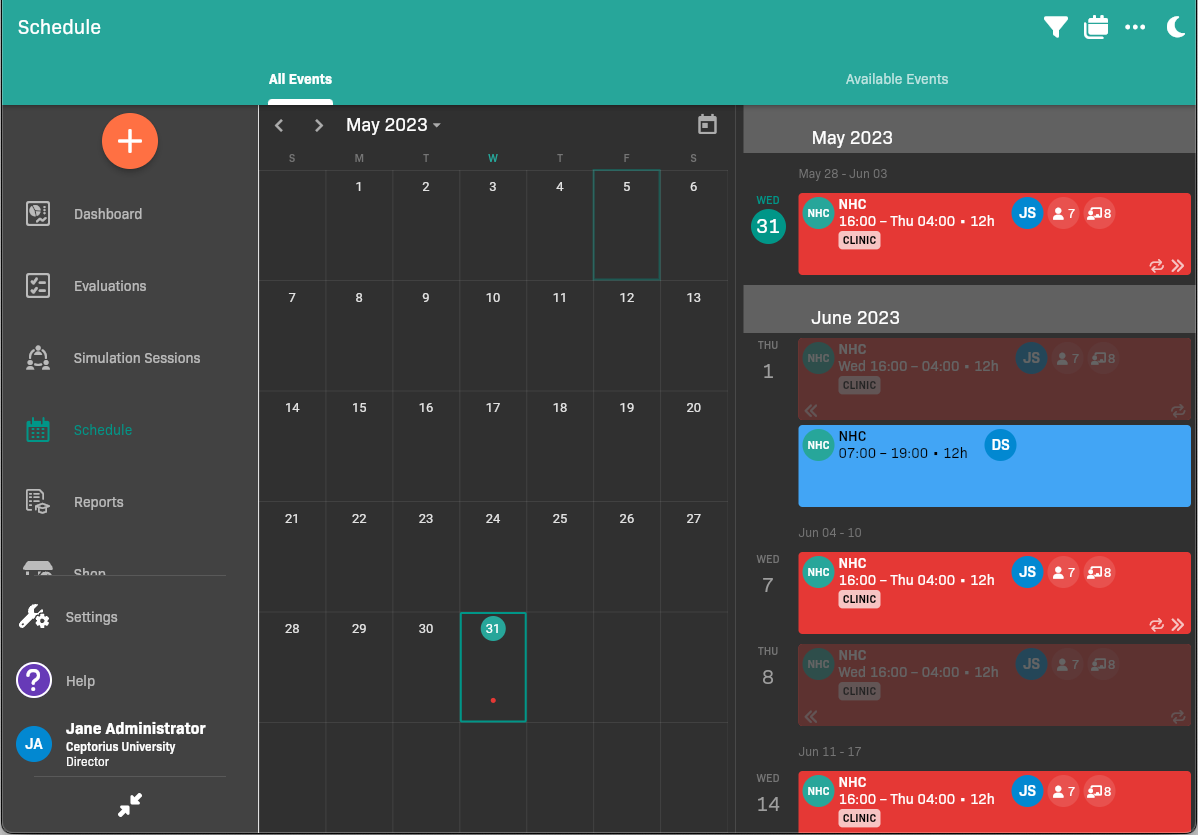
Schedule All Events view
-
In the sidebar, tap the event.
The event details appear.
.png)
Event details
Enable or disable sign-ups
Section titled “Enable or disable sign-ups”If you want to disable or enable sign-ups, disable the Allow Sign-ups toggle.
Delete the event
Section titled “Delete the event”- Tap .
- Select .
Clone the event
Section titled “Clone the event”- Tap .
- Select Clone.
- Review the cloned event before saving. Sign-up windows are copied with the event, so update any specific open or close dates if the clone happens at a different time.
Edit the event
Section titled “Edit the event”- Tap .
- Select Edit.
- Make the needed changes. See Scheduling an Event.
- Tap Save.
Change a recurring schedule
Section titled “Change a recurring schedule”When you change the recurrence for an event with assigned attendees, EMCE tries to keep each assignment on the corresponding occurrence in the new schedule. For example, moving a weekly series from Monday to Tuesday moves an attendee’s first Monday assignment to the first Tuesday occurrence where possible.
- Change the event’s Recurrence and confirm the warning.
- Review Attendees without a matching occurrence, if it appears. The notice lists each affected person and date that cannot be mapped.
- Reassign those attendees to new occurrences if needed. Assignments left in the notice are removed when you save.
- Save the event.
Notifications about an unassignment or cancelled occurrences include the affected dates so attendees can tell which parts of a recurring series changed.
Edit an attendance record
Section titled “Edit an attendance record”Faculty with scheduling permission can correct punches or record an absence from the student’s attendance row. You can record an advance absence for a future occurrence without removing the student from the roster. This is separate from editing the event itself.
See Manage attendance records, absences, and corrections for independent Keep / Set / Clear punch actions, excused and unexcused absences, shared comments, private faculty notes, and history.