
The Dashboard
Accessing the Dashboard
Section titled “Accessing the Dashboard”The dashboard appears by default when you sign in. To return to the dashboard from another page, tap Dashboard in the navigation menu.
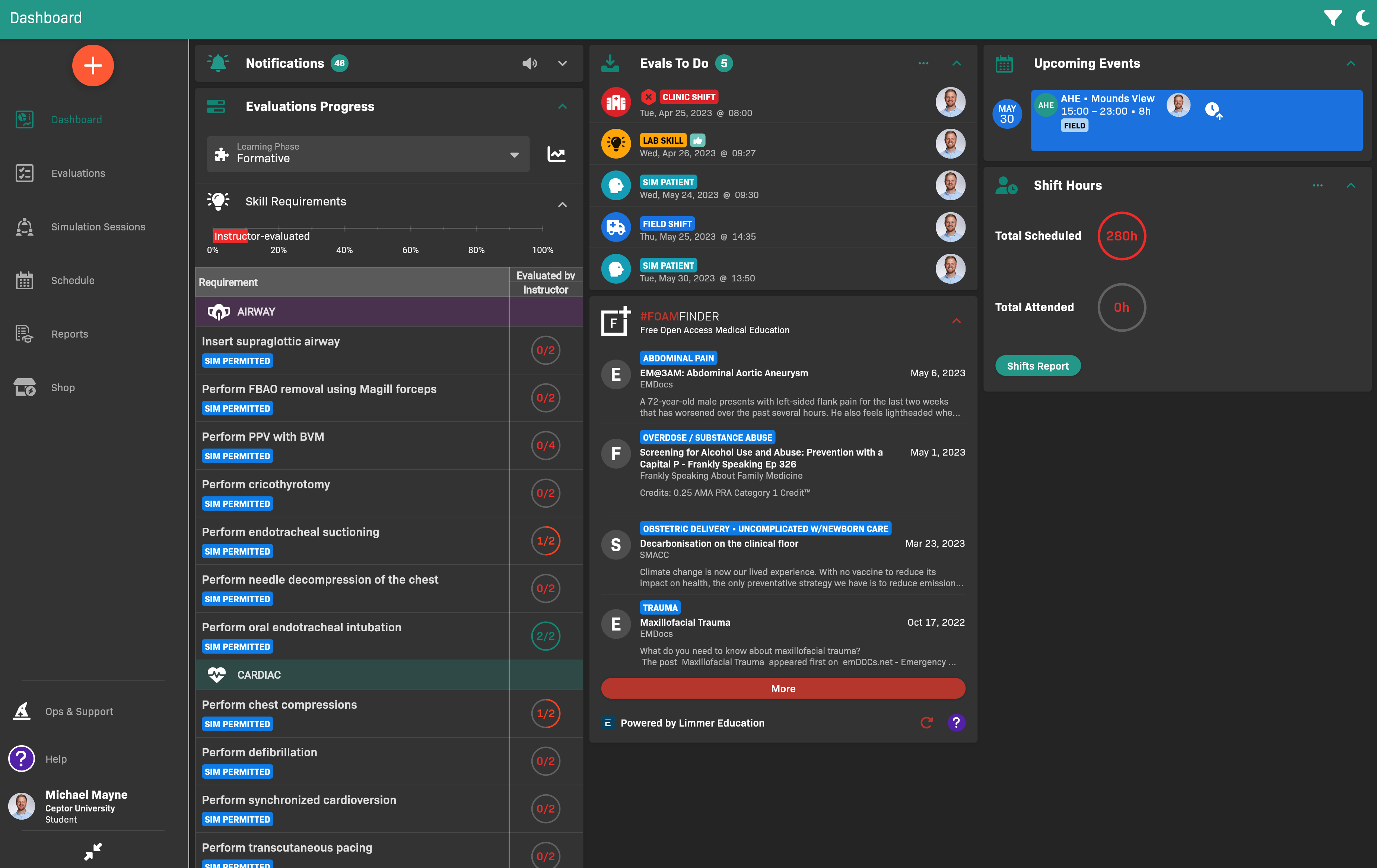
Dashboard on a laptop or tablet
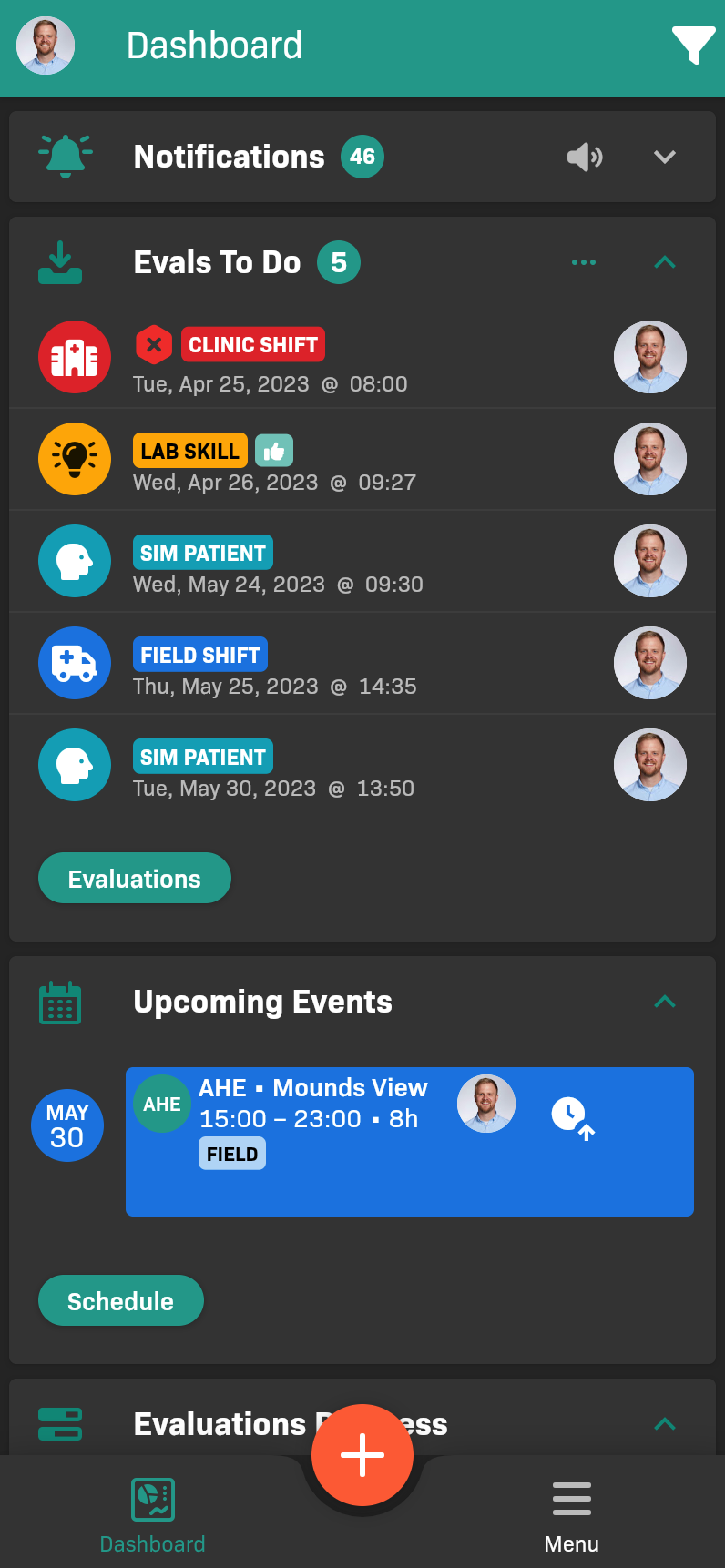
Dashboard on smartphones
Notifications widget
Section titled “Notifications widget”The Notifications widget displays scheduling notifications.
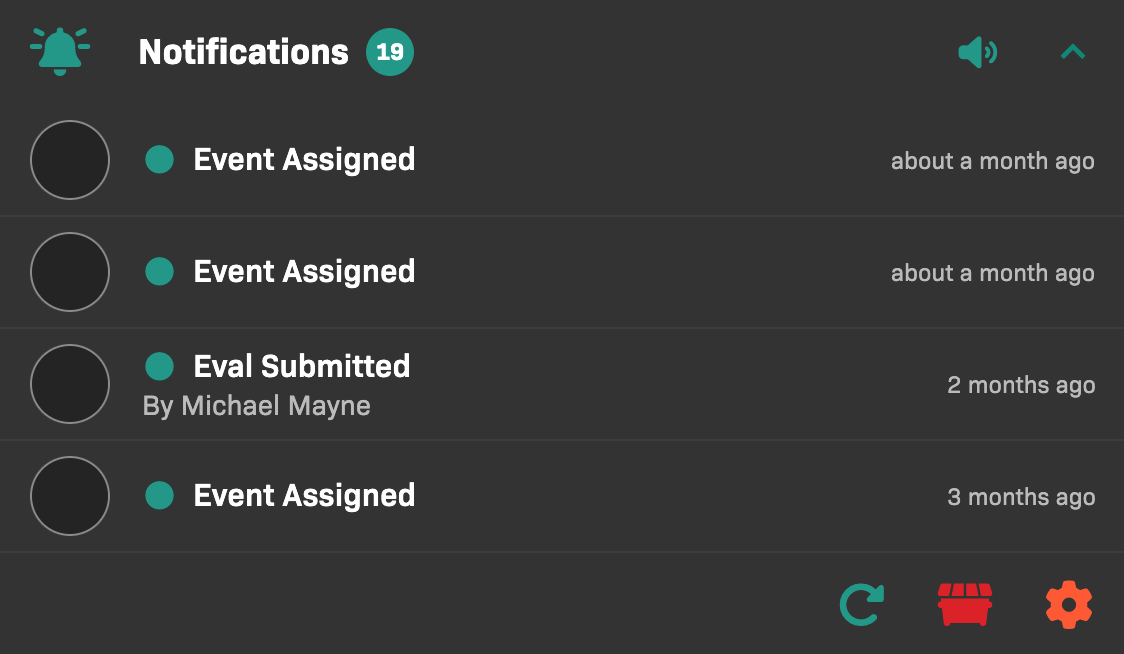
Notifications widget
To change your notification preferences, tap .
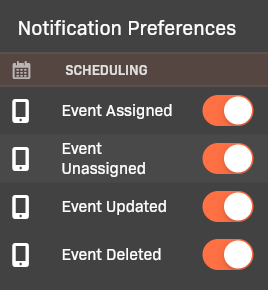
Notification Preferences
Set event and attendance reminders
Section titled “Set event and attendance reminders”In Notification Preferences:
- Under Event Reminders, choose one or more times to be reminded: at the event time, 5, 15, 30, or 60 minutes before, or one day before.
- Enable Clock-in Reminder to receive a reminder at the event’s start.
- Enable Clock-out Reminder to receive a reminder at the event’s end.
You can preview the sound beside a notification preference before selecting it. Reminder preferences follow your EMCE account across devices, but each device schedules its own notifications.
Evals To Do widget
Section titled “Evals To Do widget”The Evals To Do widget displays evaluations that need your attention, which may include:
- Evaluations that you started but did not complete
- Evaluations for which you are the evaluator, and that need your approval
- Evaluations of yours that have been rejected (denoted by an icon)
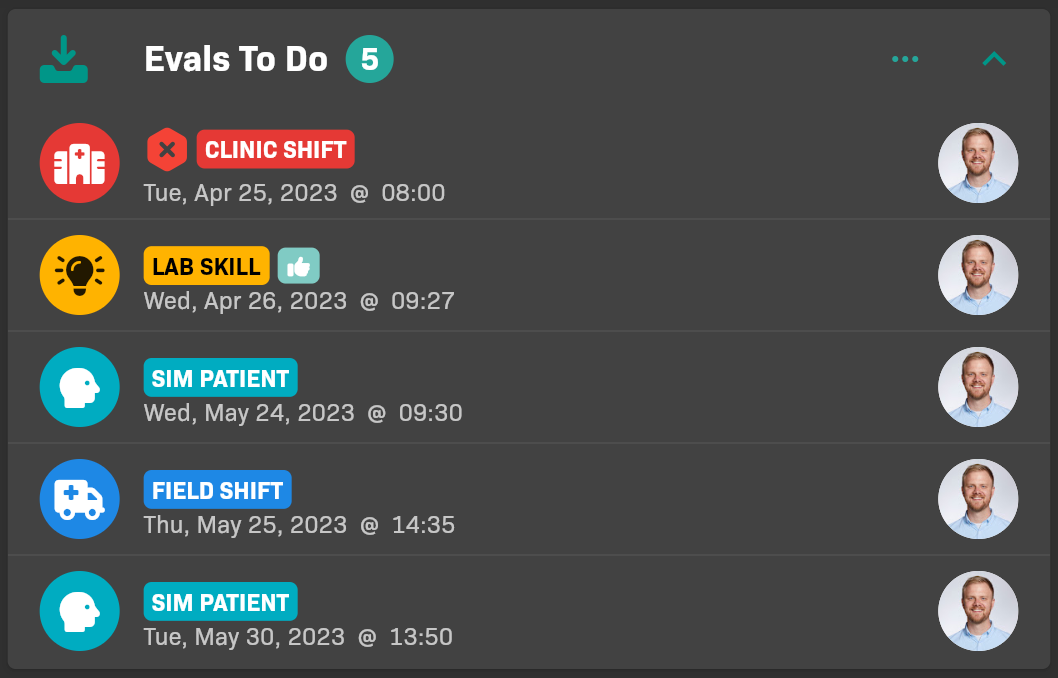
Evals To Do widget
Tap an evaluation to act on it.
Upcoming Events widget
Section titled “Upcoming Events widget”The Upcoming Events widget displays upcoming events that are assigned to you.
Remembered progress sections
Section titled “Remembered progress sections”In Dashboard → Evaluations Progress, expand or collapse a content section such as Age Groups to choose how much detail to show. EMCE remembers those choices with your profile’s dashboard preferences and restores them when you return. Skill and Patient sections retain their choices independently; new sections start expanded. There is no additional setting to turn this on.