
Filling out a shift evaluation
Step 1: Start the evaluation
Section titled “Step 1: Start the evaluation”You’ll need to complete the form for all shift evaluations. Evaluators must complete the Student Affect Evaluation rating, which is not available to self-submissions.
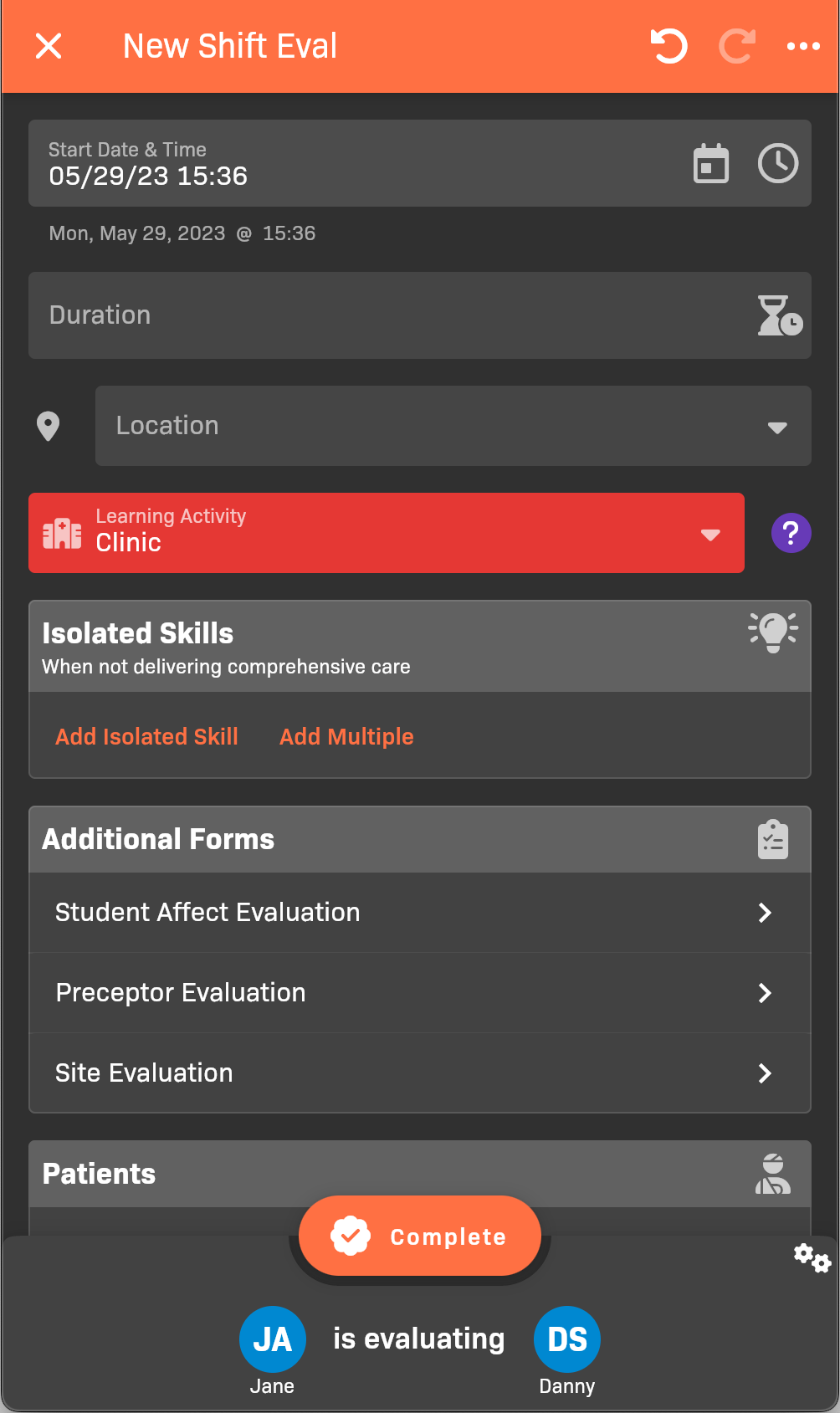
New Shift Eval
Step 2: Complete shift information
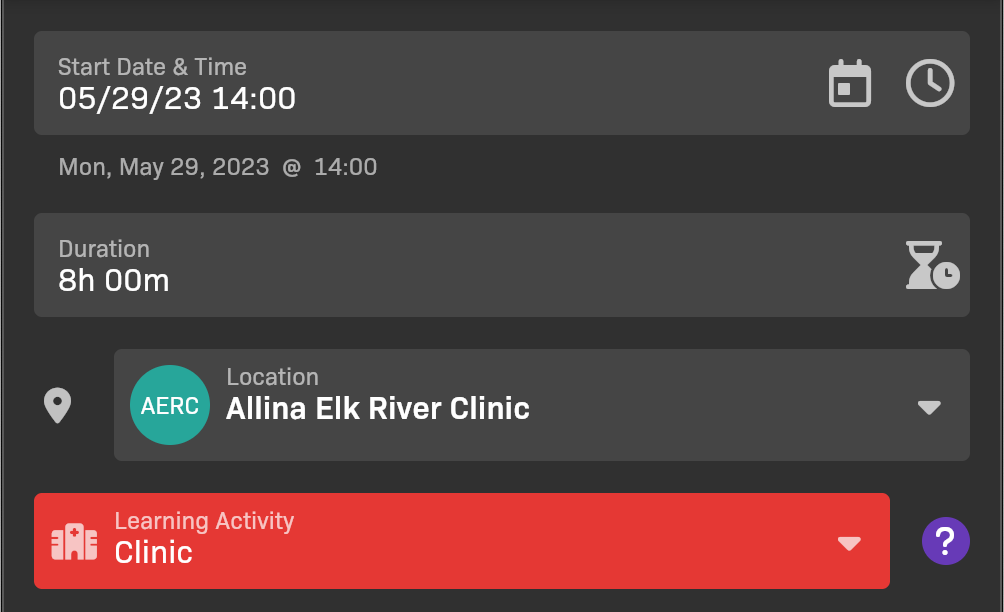
Section titled “Step 2: Complete shift information”The shift information captures when and where the shift took place.
Shift details
- Set the Start Date & Time.
- Set the shift’s Duration.
- Select the Location where the shift took place.
- Confirm that Learning Activity captures the context for the shift.
Step 3: Add isolated skills
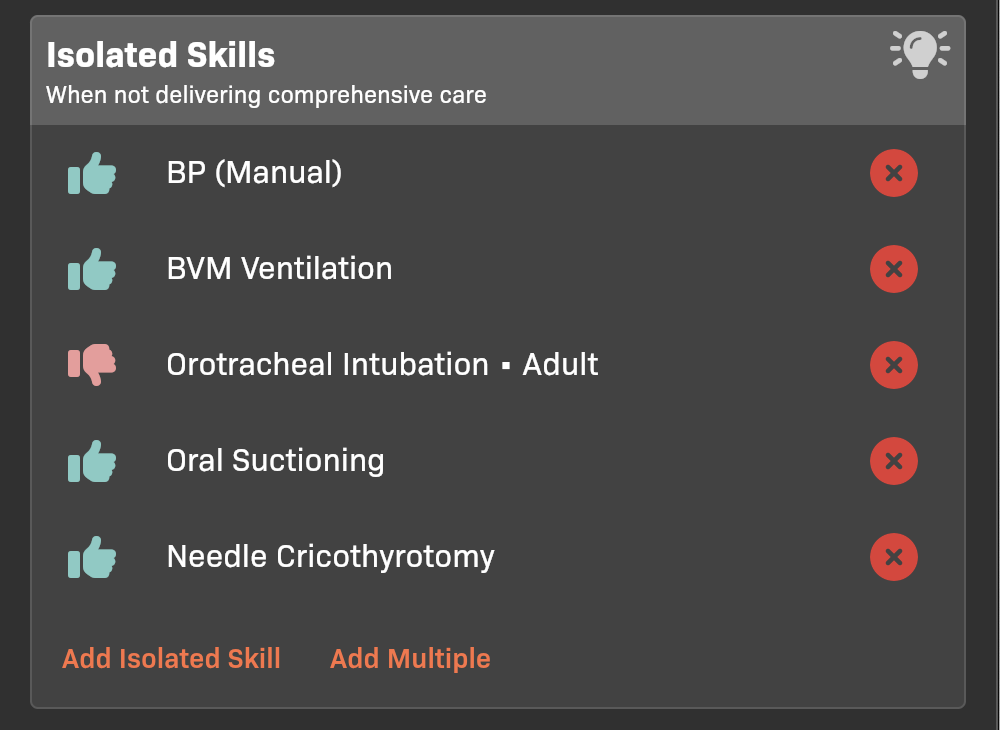
Section titled “Step 3: Add isolated skills”Add any Isolated Skills that the student demonstrated while not delivering comprehensive care.
Isolated Skills section
- To add an individual skill, tap Add Isolated Skill.
- To add multiple skills at once, tap Add Multiple.
- To edit an individual skill that you’ve added, including rating individual skill steps, tap the name of the skill after you’ve added it.
Step 4: Add patients
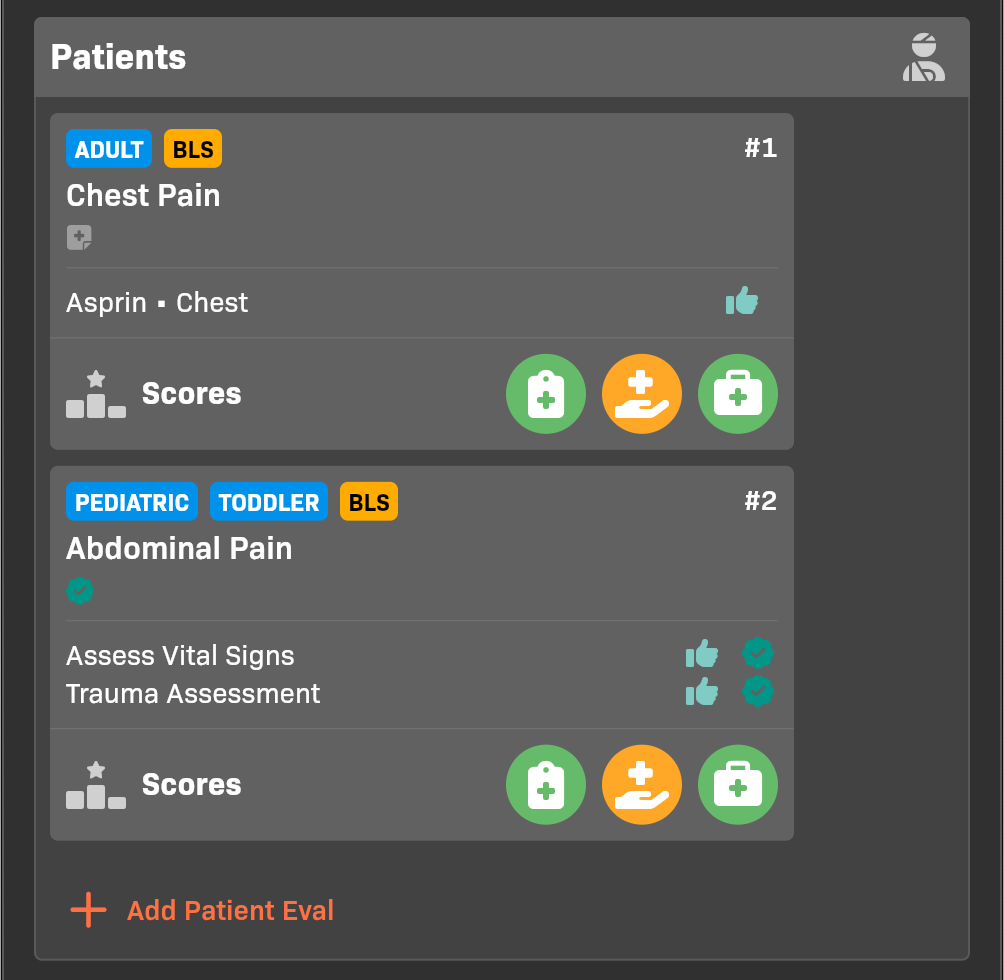
Section titled “Step 4: Add patients”Add the Patients for whom the student provided comprehensive care.
Patients section
The example uses EMCE’s built-in objectives. Your program’s objective names and icons may differ.
- To add a patient, tap Add Patient Eval.
- When you add the patient eval, the evaluator will default to the same person as the shift evaluator. You can optionally select a different evaluator.
- When saving the patient eval, you can choose to be evaluated now or save the evaluation for later.
- If the preceptor has an EMCE account, they will complete the evaluation on their own device in the future.
- If the preceptor does not have an EMCE account, you must hand them your device to complete the evaluation.
- To edit a patient eval, click the card for the eval.
- To quickly edit scores, tap any learning-objective score icon shown on the patient card. The objective names are configured by the student’s cohort.
Step 4a: Use PreceptoBot to draft evaluation details (optional)
Section titled “Step 4a: Use PreceptoBot to draft evaluation details (optional)”If your organization has PreceptoBot evaluation editing enabled, you can use it to speed up patient and shift evaluation documentation.
- In the evaluation editor, tap
PreceptoBot. - Provide information by dictating a narrative, typing it, or uploading a photo or PDF of a paper form.
- Review the proposed changes and tap Apply.
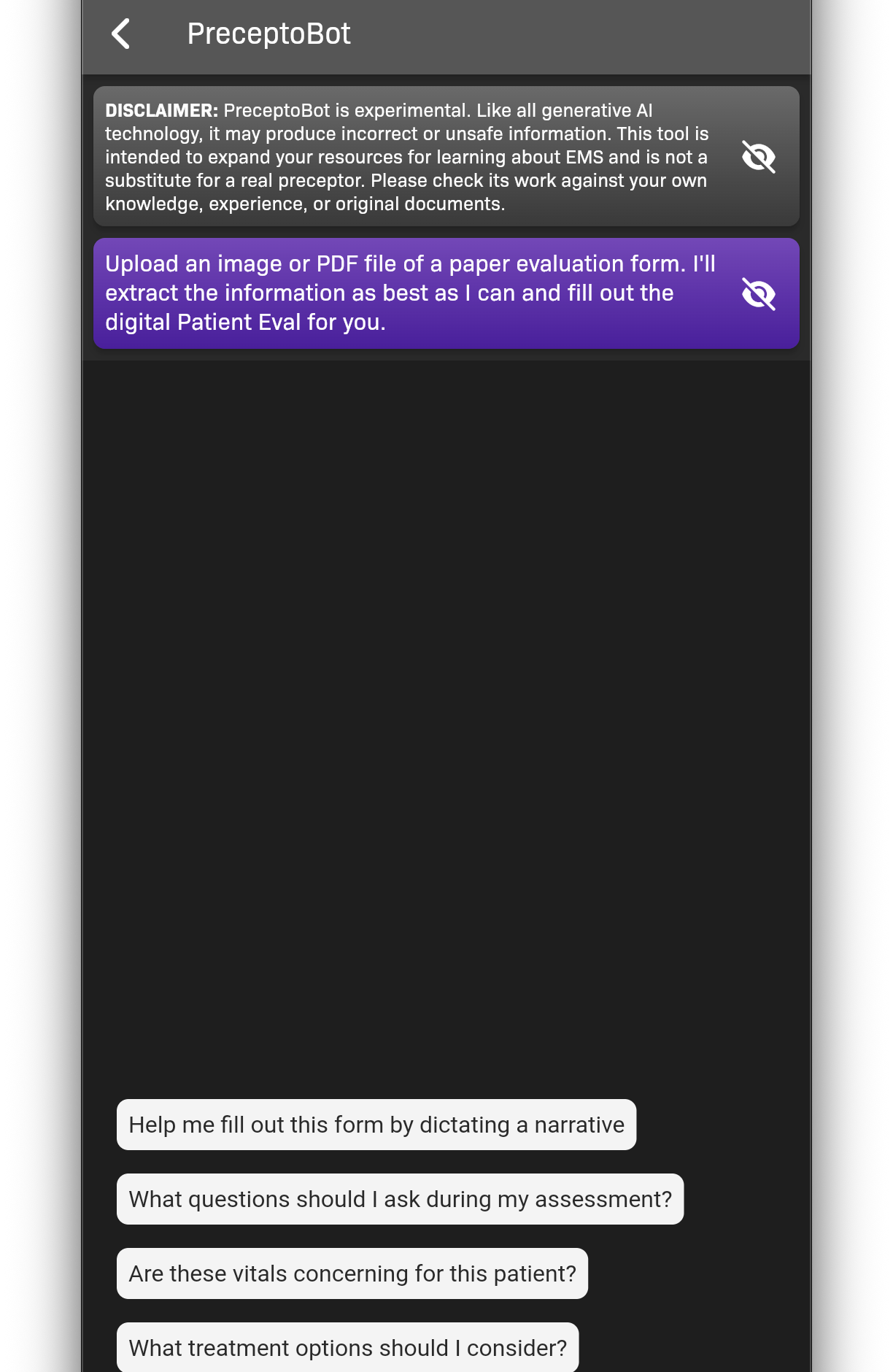
PreceptoBot in the evaluation editor
Step 5: Complete Additional Forms
Section titled “Step 5: Complete Additional Forms”In Additional Forms, complete the Student Affect Evaluation, Preceptor Evaluation, and Site Evaluation.
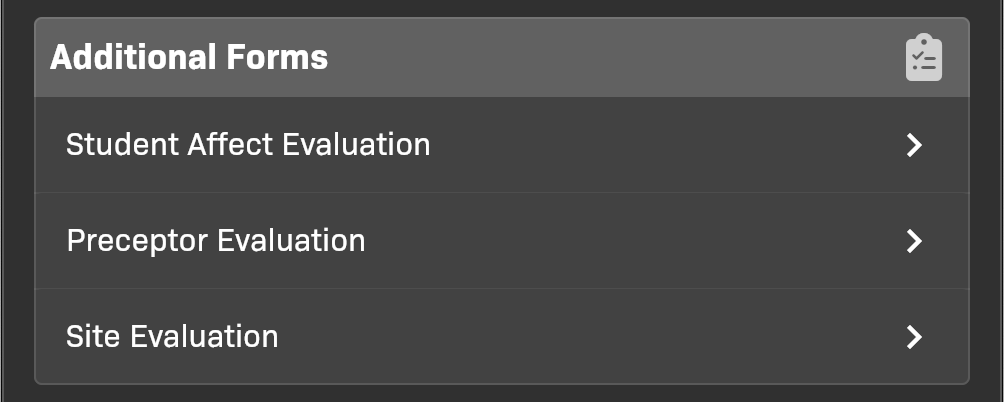
Additional Forms section
Step 6: Finish the evaluation
Section titled “Step 6: Finish the evaluation”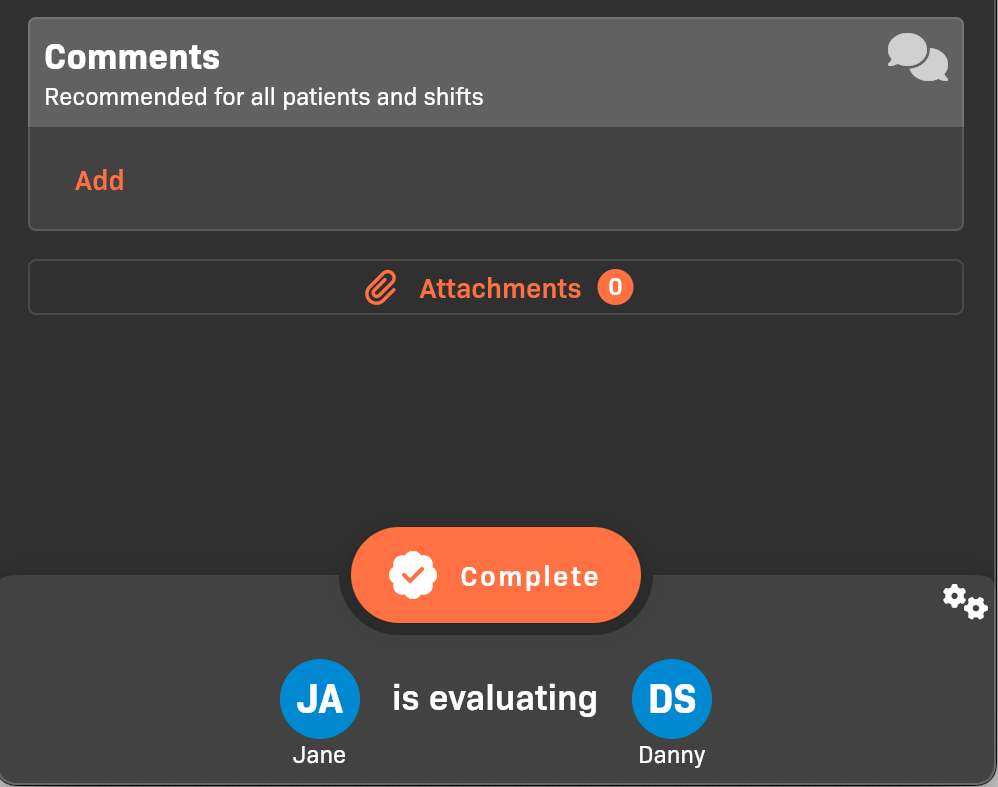
Comments and attachments
- (Optional) Add Comments and Attachments. Attachments can include documents, photos, audio recordings, audio files, and video. See Adding and viewing evaluation attachments.
- Tap Complete or Submit for Verification to complete the evaluation.
- If any patient evaluations are missing scores for the cohort’s enabled learning objectives, your evaluator will be prompted to complete them.
Patient documentation tools
Section titled “Patient documentation tools”If your cohort uses ePCR, see Record and update patient assessments, vitals, and medications for multiple assessment sets, reassessments, and cloning vitals or medication entries.
If your program uses a narrative template, opening a blank patient narrative starts it with that template. Replace prompts with the actual encounter details before submitting. Existing narrative text is not overwritten, and later template changes do not update text already copied into your evaluation.