
Filling out a simulated patient evaluation
Step 1: Start the evaluation
Section titled “Step 1: Start the evaluation”Complete the form for every simulated patient evaluation. Evaluators also score the learning objectives configured for the student’s cohort. Those objectives may include the built-in Assessment, Treatment, and Management objectives or objectives created by the program.
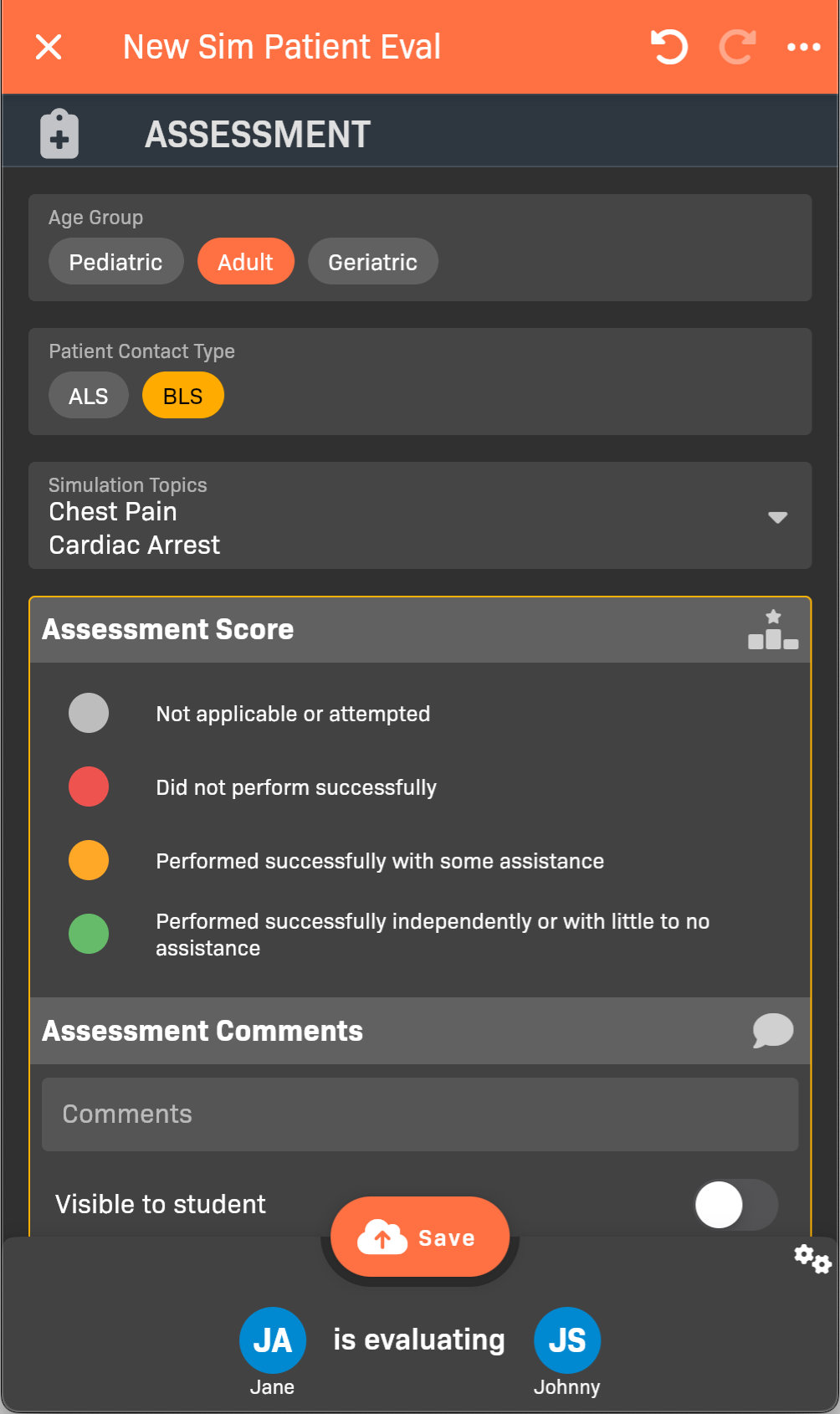
New Sim Patient Eval
The example uses EMCE’s built-in objectives. Your program’s section names and contents may differ.
Step 2: Document the patient encounter
Section titled “Step 2: Document the patient encounter”Your program controls how patient-care-report fields are grouped under the learning-objective sections. Complete every section shown in the evaluation.
- Select the patient’s Age Group and Patient Contact Type.
- Select the Simulation Topics, pathologies, or complaints that describe the patient.
- Add one or more Skills that the student demonstrated while working with
the patient.
- To edit an individual skill, including rating individual skill steps, tap the name of the skill after you’ve added it.
- For more information, see Filling Out a Skill Evaluation.
- Add a Narrative that explains what the student did.
- (Evaluators only) Score every learning objective shown. Base the score on the amount of assistance the student required. You can add comments for an objective and choose whether they are visible to the student.
For guidance on the colors and built-in objectives, see Learning objective scoring.
Step 3: Finish the evaluation
Section titled “Step 3: Finish the evaluation”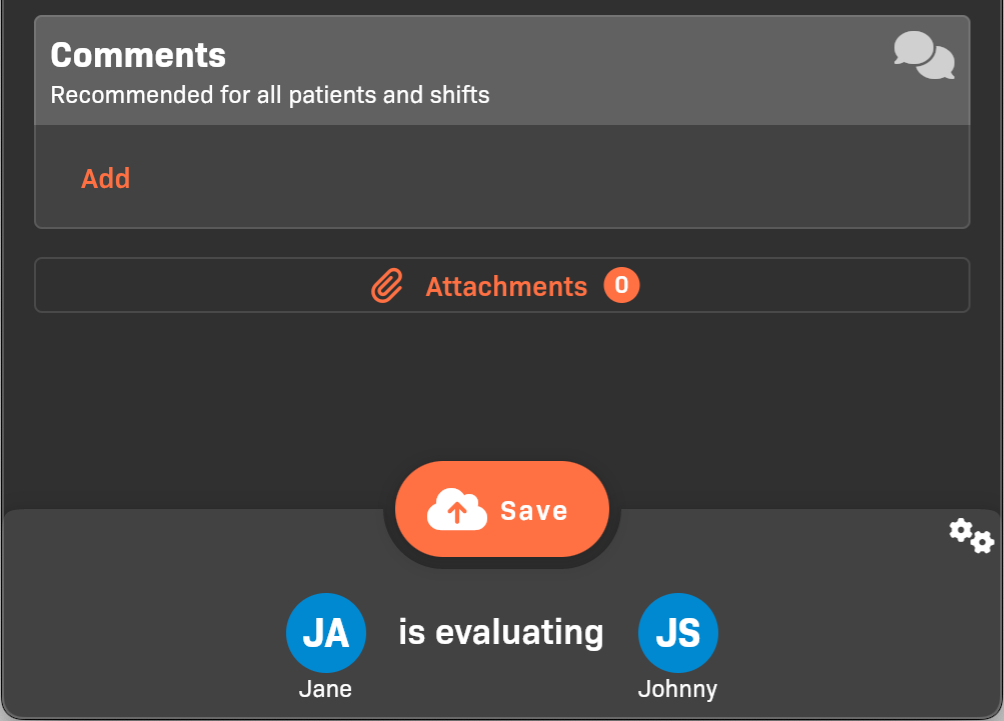
Comments and attachments
- (Optional) Add Comments and Attachments. Attachments can include documents, photos, audio recordings, audio files, and video. See Adding and viewing evaluation attachments.
- Tap Save to complete the evaluation.
Patient documentation tools
Section titled “Patient documentation tools”If your cohort uses ePCR, see Record and update patient assessments, vitals, and medications for multiple assessment sets, reassessments, and cloning vitals or medication entries.
If your program uses a narrative template, opening a blank patient narrative starts it with that template. Replace prompts with the actual encounter details before submitting. Existing narrative text is not overwritten, and later template changes do not update text already copied into your evaluation.
Filter the evaluator list
Section titled “Filter the evaluator list”When you are signed in as a student and choose an evaluator for a Skill or Sim Patient evaluation, use the choices below the search box:
- All evaluators shows eligible peers across cohorts in your program / organization unit, faculty, and preceptors when allowed.
- Instructors, or Instructors + preceptors, excludes student peers.
- My cohort shows eligible peers in your own cohort.
Search stays within your selected scope. Switching scopes keeps the search text, and opening a new picker starts with the default scope again.
Filters do not change who is allowed to evaluate. For a Lab requiring a peer, you may see All peers and My cohort. For an instructor-only requirement, the redundant scope controls are omitted. You cannot use a filter to bypass the Lab’s evaluator-role requirement or select yourself.
These student-oriented filters do not apply to the Shift evaluator picker.