
Adding and managing schedule locations
A Schedule Location represents a real place where students practice, such as a hospital or ambulance service. Adding it lets your program schedule events there; it does not require the site’s staff to manage an EMCE account.
To choose how site staff participate, see Coordinate schedules with clinical and field partners. A Schedule Viewer receives your schedules; a Scheduling Partner creates placement events and shares available slots with programs.
Managing schedule locations
Section titled “Managing schedule locations”You can manage schedule locations from the Schedule Locations page.
- Go to the Settings page. If you’re using a mobile device, you may need to access this page by first tapping (menu).
- Tap Schedule Locations.
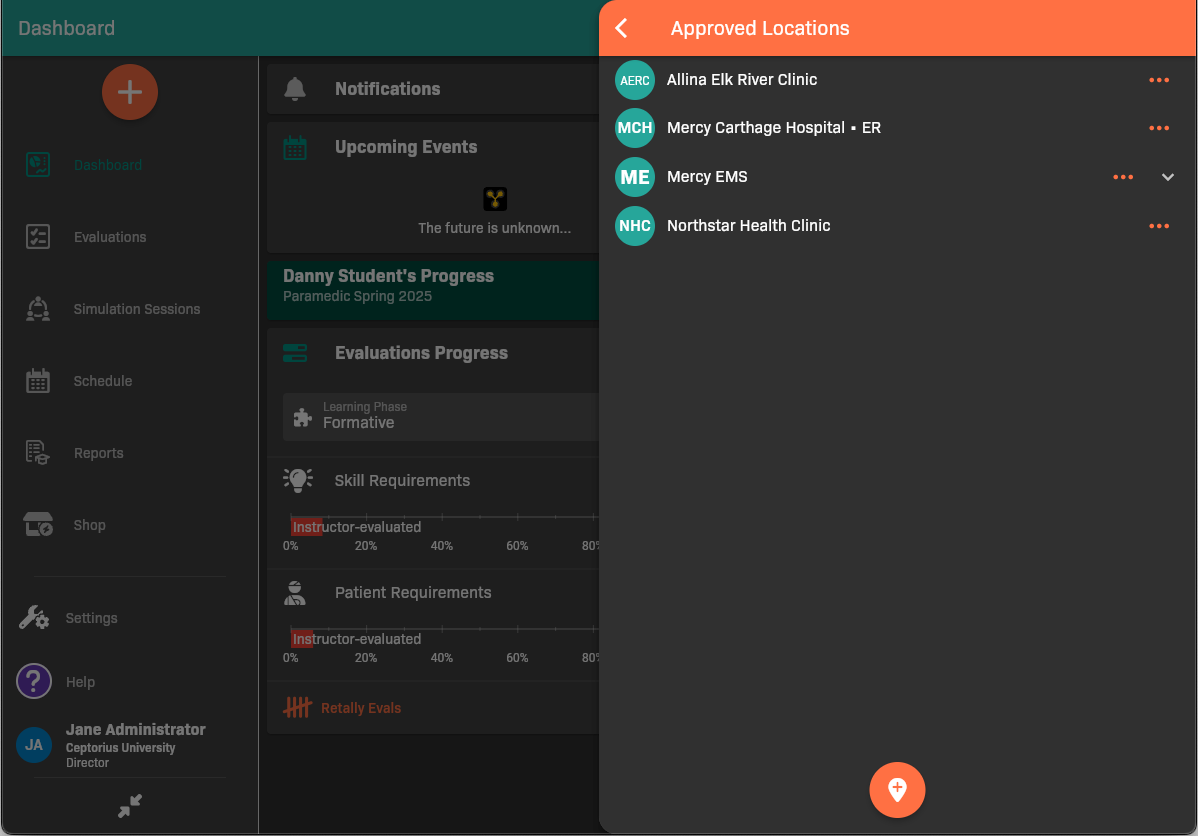
Schedule Locations
Adding a schedule location
Section titled “Adding a schedule location”Create a schedule location for each site where scheduled events will take place.
- From the Schedule Locations page, tap .
Schedule Locations
- Search for the location that you want to add.
- If you found your location, select it. The location is now approved for scheduled events.
- If you didn’t find your location, create a new one.
Create a new location
Section titled “Create a new location”If you didn’t find the location you need to add, you need to add it manually.
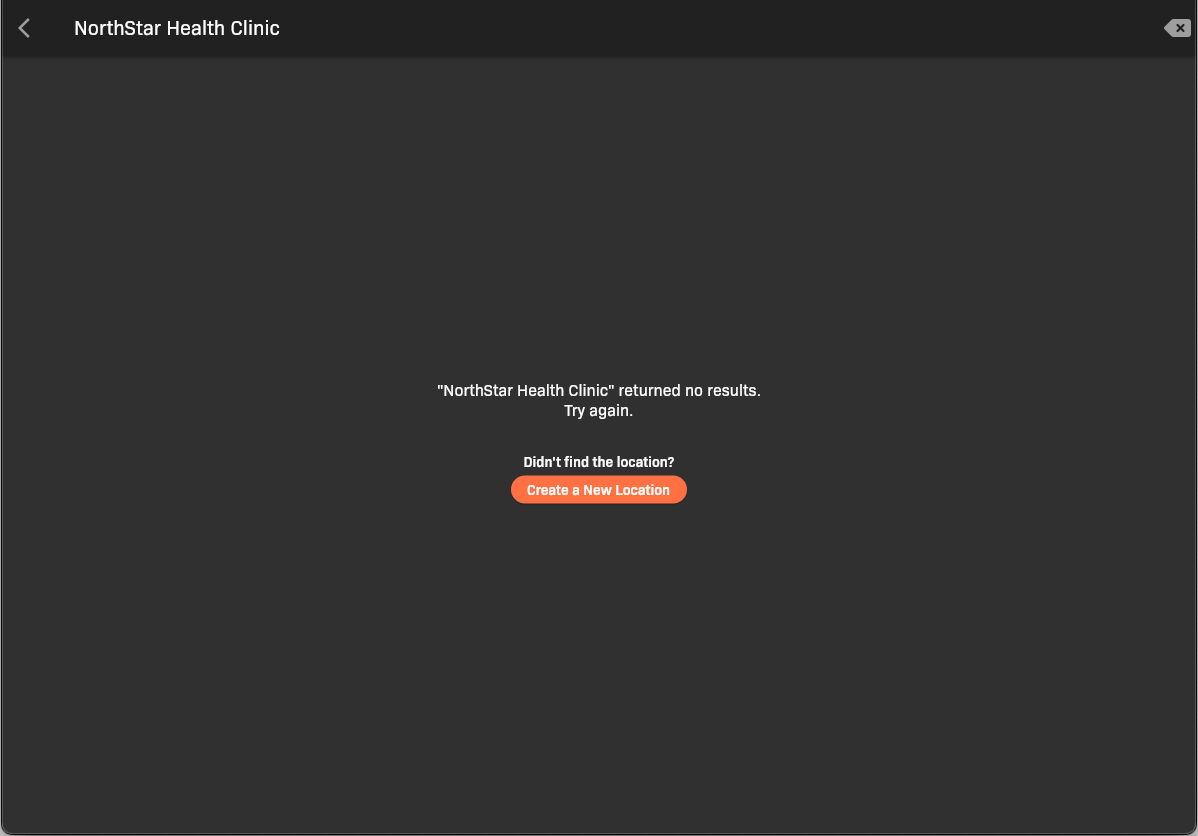
Location not found
-
Tap Create a New Location.
-
Complete the location details.
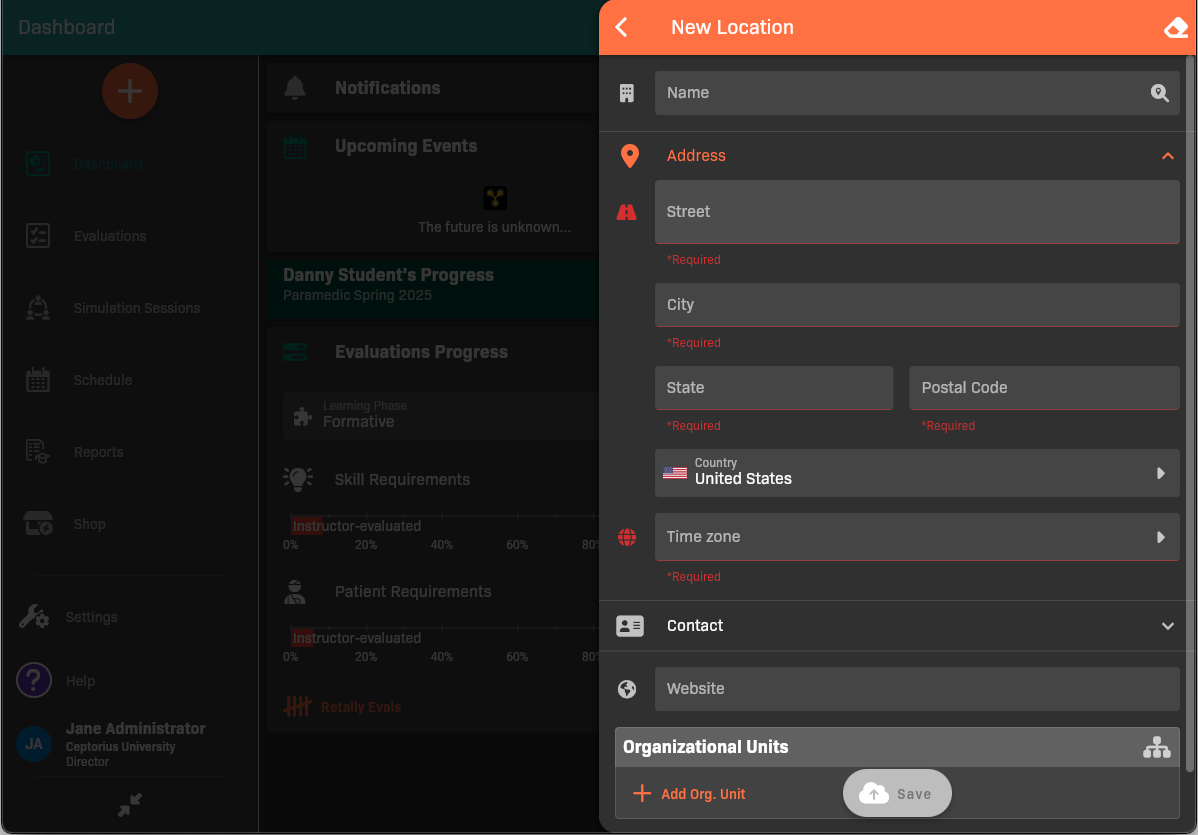
New Location
- Give the location a Name.
- Fill out the Address information for the location.
- (Optional) Add a Website for the location.
- (Optional) If the location has multiple sites/campuses, add an Organizational Unit for each.
-
Tap Save.
-
Open the saved location to set its Organization contact, when eligible as described below.
Configuring schedule location options
Section titled “Configuring schedule location options”Configure options if you’d like to select common learning activities that take place there, restrict the location to schedulers, add a contact, add notes, or add documents.
- From the Schedule Locations page, tap next to the location.
- Select Options.
- Update the options as needed.
.png)
Schedule Location Options
- When you’re finished, tap the back button.
Organization contacts and ownership
Section titled “Organization contacts and ownership”Starting in EMCE 5.1.3, Schedule Locations shows whether each organization is Claimed or Unclaimed. Open a location to see its organization contact details. If ownership cannot be verified, use Try again.
There are two separate contacts:
- Organization contact is shared across EMCE. The person using this email address can sign in and claim an unclaimed organization.
- Your organization’s location contact is configured in Options for your program, including any campus-specific contact. It does not determine who can claim the organization.
Edit an unclaimed organization’s contact
Section titled “Edit an unclaimed organization’s contact”If you are a Director or Administrator, the site is unclaimed, and only your organization uses it as a Schedule Location:
- Open the location and select Edit organization contact.
- Enter the contact’s name and email. Phone and extension are optional.
- Select Save Contact and wait for confirmation. This action does not send an invitation automatically.
Multiple campuses used by your program count as one organization. If another program starts using the site or it is claimed while you are editing, EMCE rechecks access and asks you to review the updated information. Your entries remain available.
Request an update for a shared site
Section titled “Request an update for a shared site”For an unclaimed site used by more than one organization, select Request contact update, review the current details, enter the proposed contact, and explain the change and your relationship to the site. Select Submit Request. EMCE receives a support ticket for review; submitting does not immediately change the contact. If submission fails, your entries remain in the form for retry.
External programs cannot edit a claimed organization’s shared contact. Its own administrators manage that information. If it has no active Director, contact EMCE support for assistance.
Updating a schedule location
Section titled “Updating a schedule location”Update a schedule location if you need to change its name, address, website, or organizational units. Organization contact changes use the separate Save Contact or request flow above.
- From the Schedule Locations page, tap next to the location.
- Select Edit.
- Update the location as needed.
- When you’re finished, tap the back button.
Help the site start scheduling
Section titled “Help the site start scheduling”Setting an organization contact and inviting a Schedule Viewer are different tasks. The organization contact supports claiming the site; the viewer receives selected schedules.
- To share your program’s schedule, authorize a Schedule Viewer.
- To help the site create its own events, work with a Scheduling Partner and share the partner setup guide.
Unapproving a schedule location
Section titled “Unapproving a schedule location”If you no longer want to allow events to take place at a location, you can unapprove it.
- From the Schedule Locations page, tap next to the location.
- Select Unapprove.
- Update the location as needed.
- When you’re finished, tap the back button.