
Managing cohorts
Go to the Cohorts screen
Section titled “Go to the Cohorts screen”- Go to the Settings page. If you’re using a mobile device, you may need to access this page by first tapping (menu).
- Select the appropriate Program / Organization Unit, if prompted.
- Tap Cohorts.
The Cohorts screen appears.
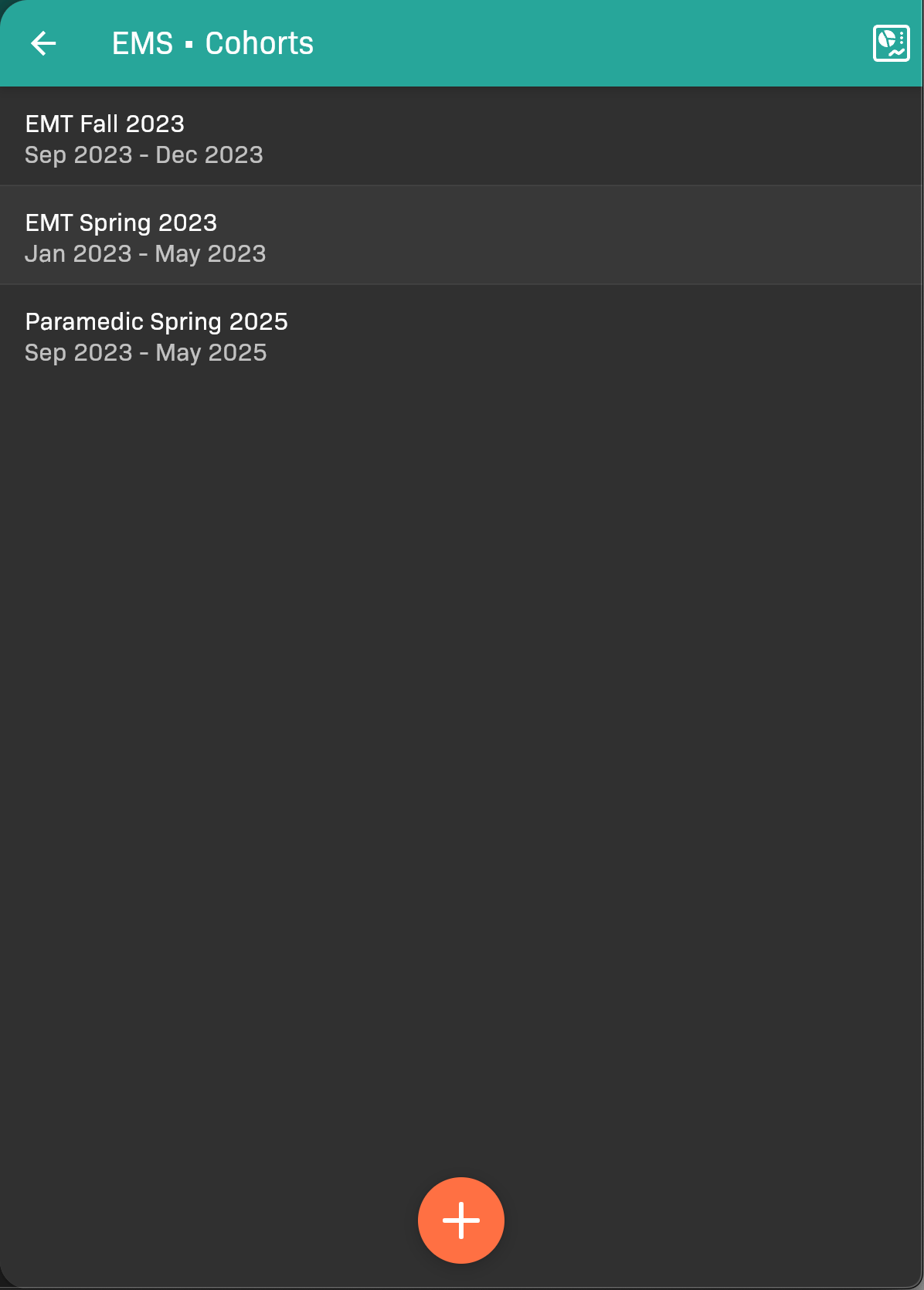
Cohorts screen
Add a cohort
Section titled “Add a cohort”Tap at the bottom of the screen. See Add Your First Cohort for details.
Edit a cohort
Section titled “Edit a cohort”- Tap the name of the cohort.
- Make your changes. For details see Add Your First Cohort.
- When you’re finished, tap .
The cohort screen also shows What counts as a successful patient encounter? This is the learning-objective configuration captured when the cohort was created. It is shown for reference because changing an existing cohort’s objectives can change how previously completed patient evaluations count. Contact EMCE Support if an existing cohort’s configuration must be corrected.
Scheduling default for new students
Section titled “Scheduling default for new students”In the cohort’s Scheduling section, review Students can create/sign up for events, or Students can sign up for events when your organization does not allow student event creation.
The setting defaults to on, including for older cohorts without an explicit value. It determines the initial scheduling permission for new student profiles created in that cohort. Changing it does not update students who already exist, and transferring an existing student does not reset their individual permission from this default.
An Administrator can change a student’s individual permission later in Managing students. The cohort default does not enable event creation when your organization disallows it, and does not bypass graduation restrictions.
Retally Evaluations for a cohort
Section titled “Retally Evaluations for a cohort”If any cohort requirement specifications have changed, and students have already entered data, existing evaluations will need to be re-matched with those requirements.
-
Tap the name of the cohort.
-
Tap in the top-right corner.
-
Tap Retally to confirm.
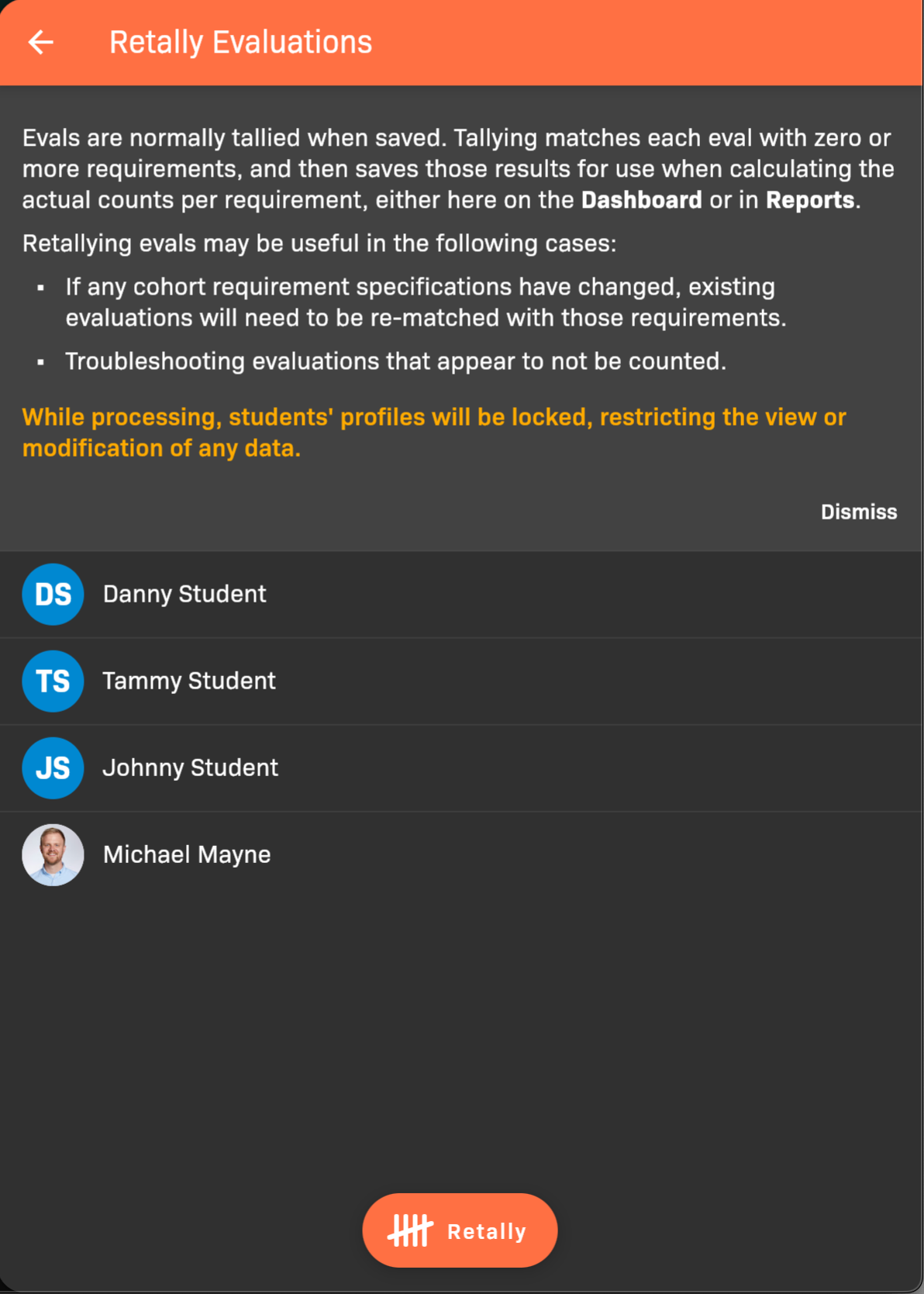
Retally Evaluations