
Facilitating a Sim Session
Step 1: Create the sim session
Section titled “Step 1: Create the sim session”In this step, you’ll create the sim session and add scenario information.
- Tap the button, then select Simulations.
- When you’re prompted to pick a sim type, tap Simulation Session.
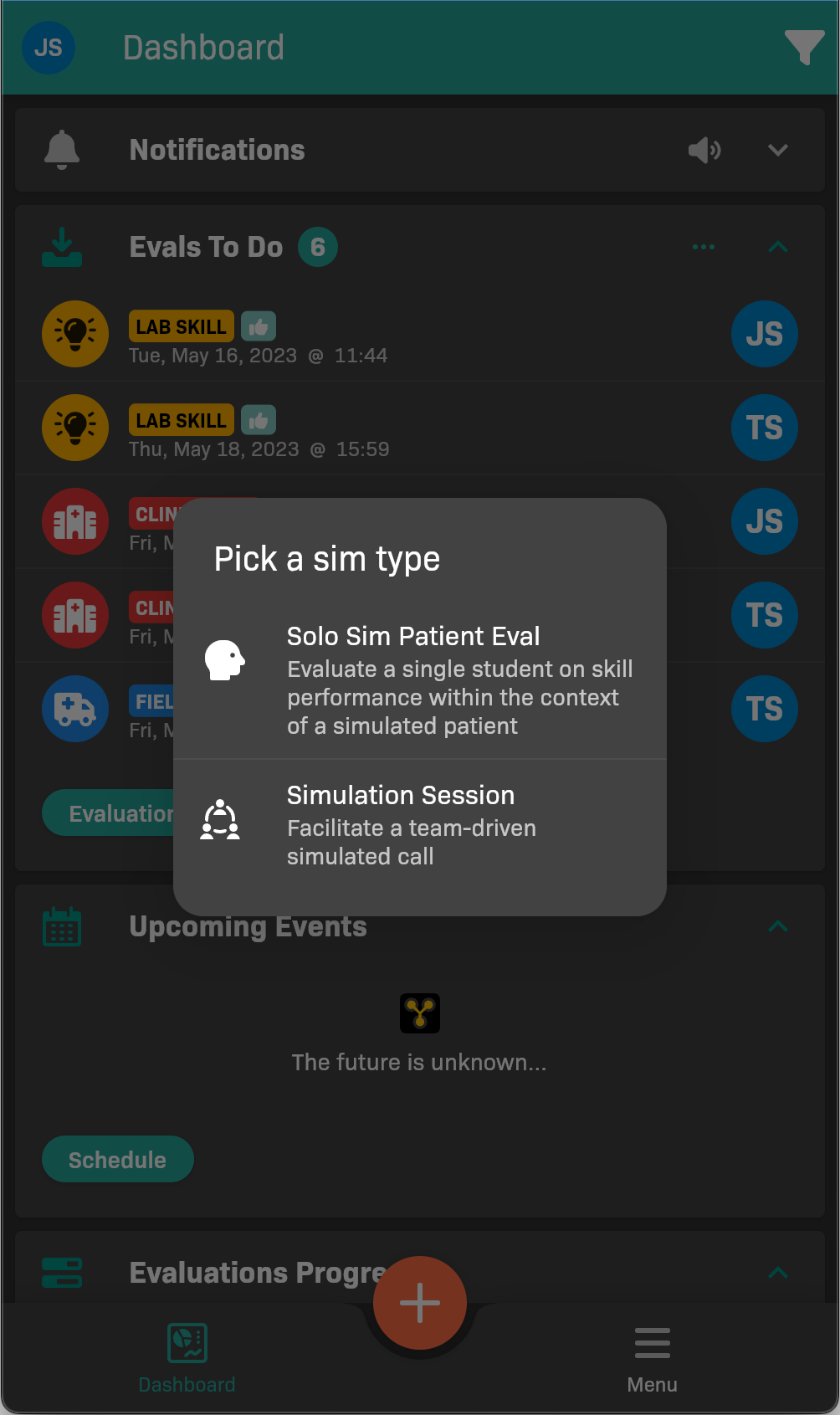
Pick a sim type
- Set up the Scenario.
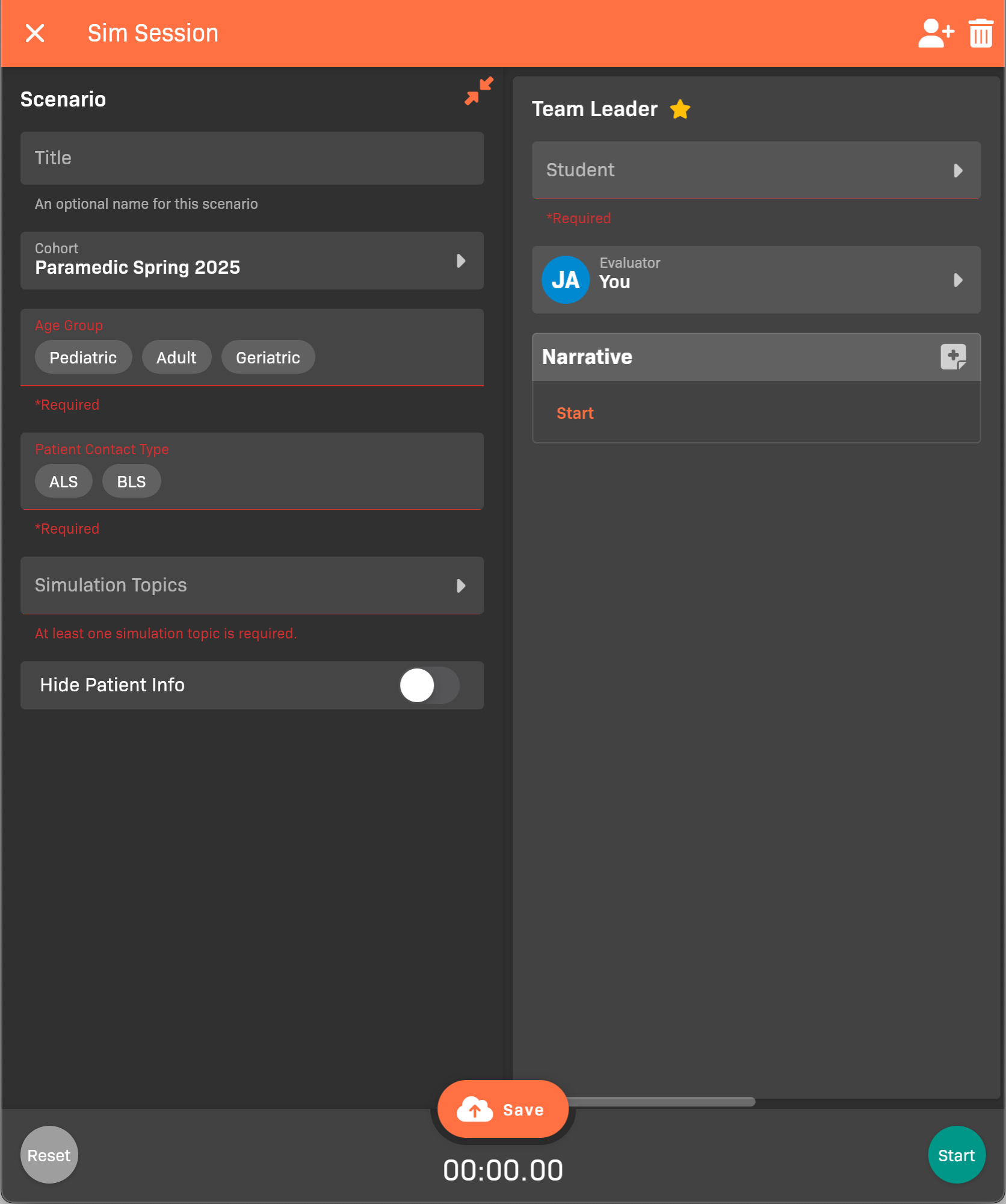
Sim Session Scenario
- (Optional) Set a Title.
- Select a Cohort.
- Select the patient’s Age Group.
- Select the Patient Contact Type; ALS or BLS.
- Select one or more Simulation Topics that capture the patient’s symptoms.
- (Optional) Enable Hide Patient info to prevent participants from seeing patient information that might given them an advantage during the session.
- Tap outside the Scenario pane to close it.
Step 2: Add team members
Section titled “Step 2: Add team members”In this step, you’ll add the student facilitator and other participating students.
- In the Team Leader column, select a Student.
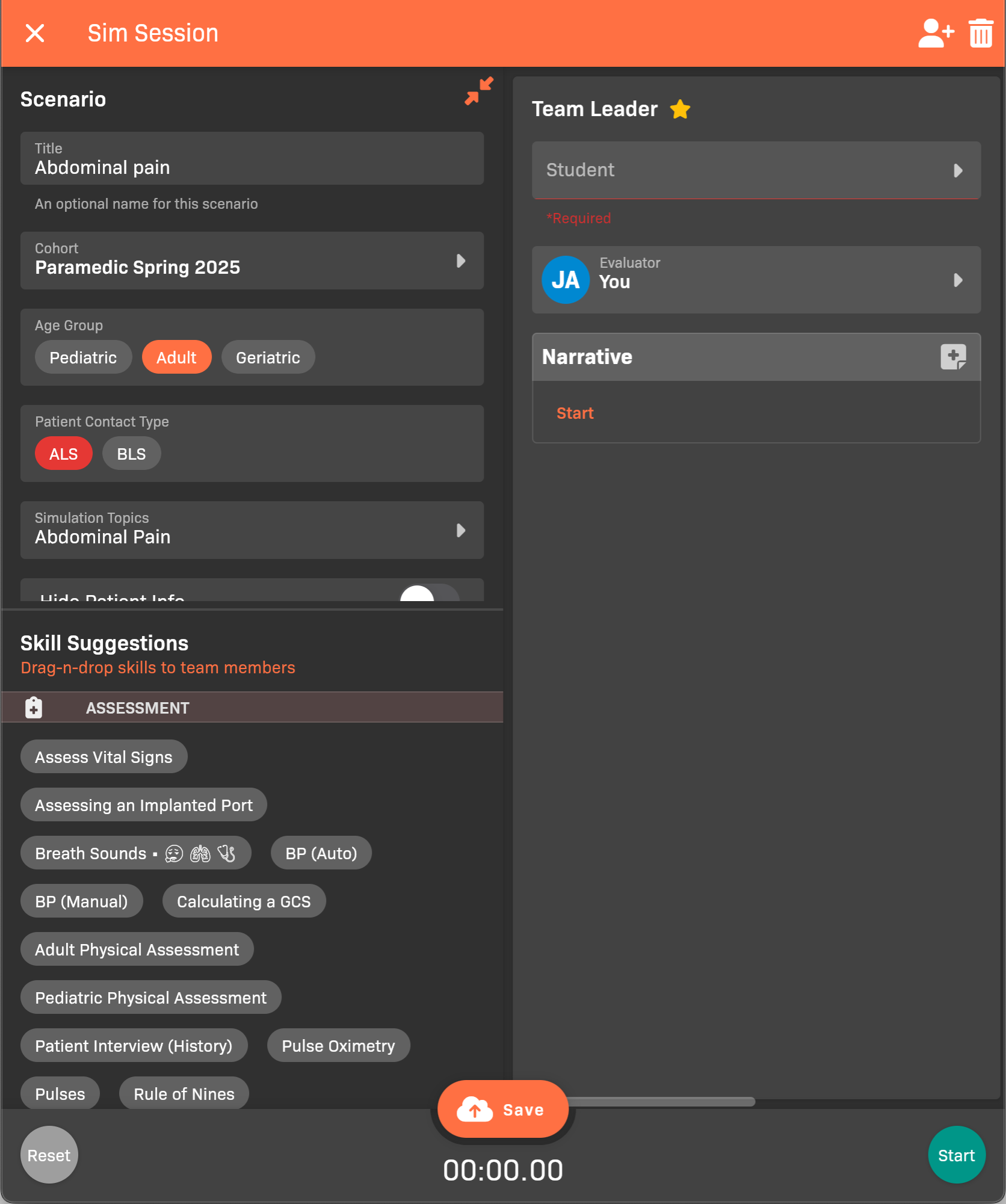
Select a Team Leader
- Add the next team member:
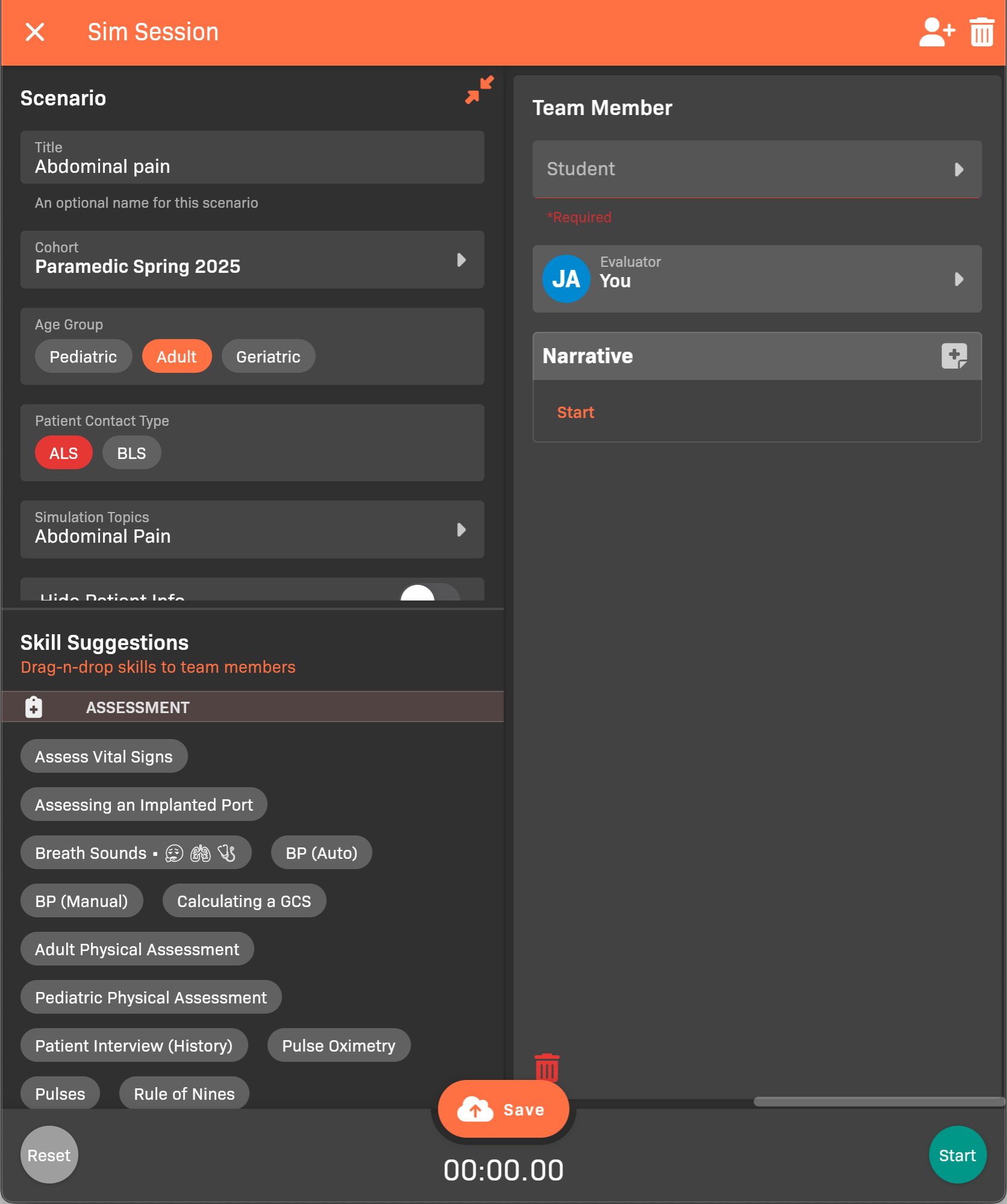
Select a Team Member
- Scroll to the Team Member to the right.
- Select a Student.
- Add each additional participating student.
- Tap to add a team member.
- Select a Student.
Step 3: Provide instruction to the participating students
Section titled “Step 3: Provide instruction to the participating students”At this point, you’re ready to let participating students and observing students know what to do.
- (Optional) Designate students that will observe and evaluate participating students.
- If you don’t do this, you will need to evaluate the participating students yourself.
- Let the observing students know that they should join the Sim Session from their devices in the EMCE app. See Joining a Sim Session as an Evaluator for more information.
- Present the scenario information to the participating students.
Step 4: Start the Sim Session
Section titled “Step 4: Start the Sim Session”Start the session and record the results.
- Tap Start at the bottom of the screen.
- If you are personally evaluating one or more participants:
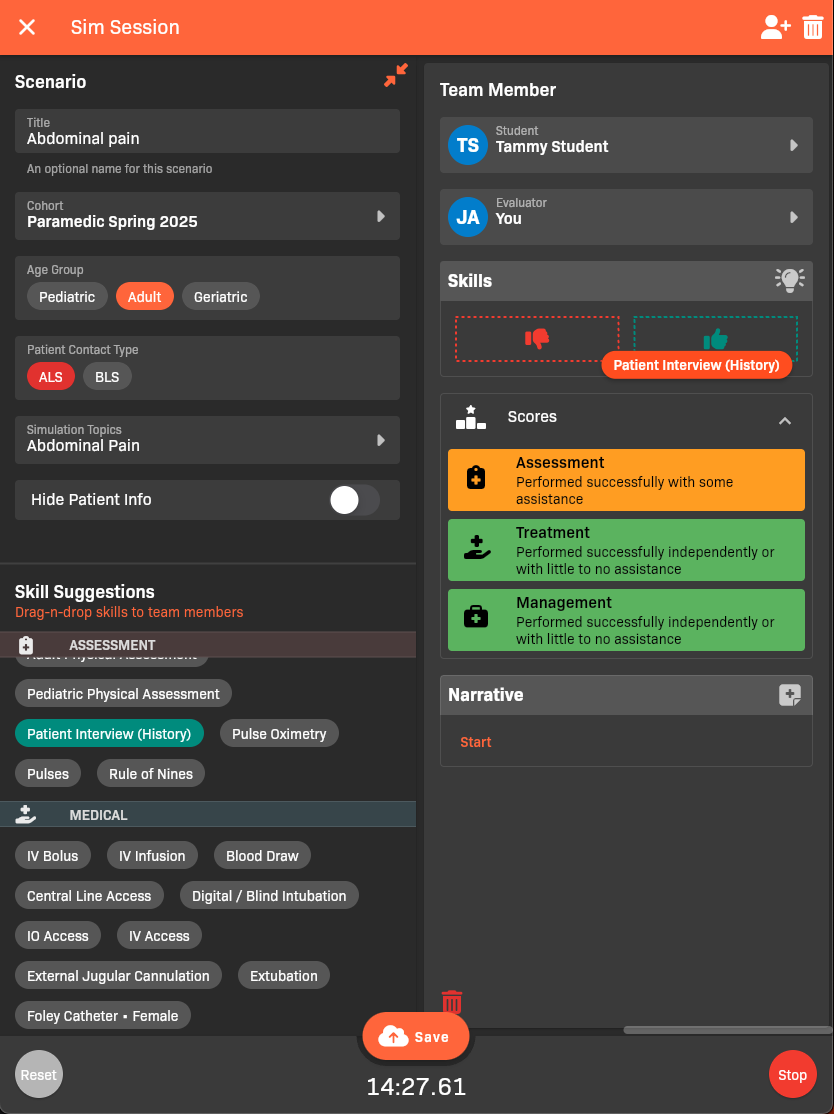
Dragging the Patient interview (History) skill
- Add the Skills that the student demonstrated. You can Add One, Add Multiple, or drag skills from the Sill Suggestions area to the or student’s Skills area.
- In the Scores area, score every learning objective shown for the participant’s cohort.
- Add a Narrative that explains what the student did.
- Complete any enabled Companion Forms on the participant card. Forms marked with an asterisk are required.
- When the session is finished, tap Stop at the bottom of the screen.
- Make sure the evaluators have finished entering their ratings.
Step 5: Review and end the session
Section titled “Step 5: Review and end the session”- Open the Save actions and choose Complete to open End Sim Session?. Choose Save for Later instead if you are not ready to end the session.
- Review each participant’s patient evaluation and the displayed outcome.
- Complete completes the evaluation when the evaluator is the facilitator.
- Submit for Verification routes it to the selected evaluator.
- Assign eval sends it to that student to finish their narrative or ePCR and then submit it to the named evaluator.
- Choose Assign eval only for participants who need documentation work. For example, assign it to the team leader while leaving the helpers on their appropriate completion or submission outcomes. You can assign all, some, or none of the participants.
- If you need to take over an evaluation, review Use facilitator and its effect on the evaluator and outcome. Restore previous evaluator undoes that choice before confirmation.
- Resolve any required-work errors shown for each participant. Assignment can defer applicable documentation work to that student; it does not waive requirements for participants who are not assigned documentation.
- Review the outcomes again and confirm End Session. Cancel to leave without applying the completion choices.
Child skill evaluations follow their patient evaluation’s evaluator and workflow; they do not receive separate documentation assignments. Existing scores and skill records remain part of the evaluation. Ending a session does not automatically approve every participant’s work or grant requirement credit. The displayed outcome and applicable cohort requirements determine what happens next.
If EMCE reports that the session changed during review, close the completion review and reopen it to check the latest participants and outcomes.